
To schedule Instagram Reels, turn on Schedule this reel under More options in the Instagram app, use Create reel in Meta Business Suite, or upload the video to a scheduler that publishes through Instagram's API. The app takes up to 25 scheduled posts a day, up to 30 days ahead. Which route fits depends on what the reel needs: library music, a collaborator, a cover frame, or a date more than a month away.
Each route drops something. Below: the steps for all three, the limits with their sources, why scheduled reels fail, and a checklist to copy.
How do you schedule Instagram Reels in the Instagram app?
Create the reel as usual, open More options on the last screen, switch on Schedule this reel, pick a date and time, then tap Schedule. Instagram's Help Center says you need a public account and can schedule up to 25 posts a day, up to 30 days in advance.
The full sequence, as Instagram documents it:
- Tap Create in the top left, or swipe right anywhere in Feed, then tap Reel.
- Select your video and tap Next.
- Add the caption, effects or filters.
- Tap More options.
- Turn on Schedule this reel and choose a date and time.
- Tap Done, then Back.
- Tap Schedule.
To change a scheduled reel, open your profile, tap the menu in the top right and choose Scheduled content. Each item can be deleted, edited, rescheduled or shared now.
What can't you schedule in the Instagram app?
Instagram's own note under the steps reads: features like product tagging, collaborative posts, sponsored posts and fundraisers aren't compatible with scheduled content. A reel with a collab partner, a paid partnership label or tagged products has to be posted live, or scheduled another way.
Two more limits follow from the same page:
- 30 days. A launch reel for a date six weeks out cannot sit in the app's queue yet.
- One phone, one account. The schedule lives in the app. A colleague cannot review or approve it without your login.
The app's strength is everything creative. Instagram's steps put effects and filters before More options, and music is not on its list of features that are incompatible with scheduling.
How do you schedule a reel in Meta Business Suite?
In Meta Business Suite, choose Create reel, add the video and caption, choose to schedule the reel, pick the date and time, and click Schedule. Meta documents the flow in its guides to creating and managing reels and to posting Facebook and Instagram content.
- Connect the account. Meta requires an Instagram business or creator account for Meta Business Suite. You can log in with your Instagram credentials, without a Facebook Page.
- At the top of Home (or in Content or Planner), click Create reel.
- If your Page and Instagram profile are connected, the reel goes to both by default. Deselect Facebook under Post to if it should only go to Instagram.
- Add the video, choose a thumbnail, write the caption and click Next.
- Choose to schedule the reel and set the date and time.
- Click Schedule. The reel is listed under Content, Posts & reels, Scheduled.
To move it, open Scheduled, click the options menu on the reel, then Manage post and Reschedule post.
Step 3 is where most accidents happen. A reel cut for Instagram, with an Instagram-specific caption and hashtags, lands on the Facebook Page as well unless you untick it. Meta's articles do not state how far ahead you can schedule, so check the date picker before you promise a client a slot.
How do third-party schedulers publish Instagram Reels?
A scheduler stores your video and caption, then asks Instagram's API to publish the reel at the minute you chose. The API has no schedule field: Instagram's content publishing guide describes creating a media container and publishing it, and a container expires after 24 hours. The waiting happens on the tool's side.
That design explains what a scheduler can and cannot do. Per Instagram's media reference, an app can set:
- the caption (2,200 characters, 30 hashtags and 20 @ mentions at most)
- a cover, either a frame of the video or a separate JPEG of up to 8 MB
- whether the reel also appears in the main feed
- up to 3 collaborators
- a location and tagged users
- a name for your original audio
And it cannot set:
- Library music. The reference states that music tagging is only available for original audio. The sound has to be in your video file.
- Filters. The publishing guide lists them as unsupported.
- Product tags, in most tools. The publishing guide lists shopping tags as unsupported. Meta's separate product tagging API can tag products in a reel, but only for apps that use Facebook Login, and not for Creator accounts.
- Alt text on reels. The alt text field covers image posts only.
The API works with Instagram professional accounts, so a personal account has to switch to Creator or Business first. Instagram also caps an account at 100 API-published posts in a rolling 24 hours, which no normal reel calendar gets near.
In reelport.io, a reel takes a cover frame, the share-to-feed switch, up to three collaborators and a first comment, and the composer checks the file and caption against Instagram's limits before it lets you schedule. For a reel that needs library music or product tags, Remind me mode sends you a reminder at the planned time and you post it in the app yourself.
Which way to schedule Instagram Reels should you use?
Pick by the one feature the reel cannot live without. Library music or an in-app effect means the Instagram app. A collaborator, a date beyond 30 days, a team approval or the same video going to other networks means a scheduler. Meta Business Suite sits between the two if Facebook and Instagram are your only channels.
| The reel needs | Use | Why |
|---|---|---|
| Music from Instagram's library | Instagram app | The API only handles original audio |
| A collab partner | Scheduler | The app excludes collaborative posts from scheduling; the API takes up to 3 |
| A date more than 30 days away | Scheduler | The app's window ends at 30 days |
| Product tags | Post it live, unless your tool supports them | The app excludes product tagging from scheduling; the API tags products only through Facebook Login, and not for Creator accounts |
| A paid partnership label | Post it live, unless your tool supports it | The app excludes sponsored posts from scheduling; the API sets the label only for apps that use Facebook Login |
| Sign-off from a client or manager | Scheduler with approvals | The app's queue lives on one login |
| The same video on TikTok and YouTube Shorts | Scheduler | One upload, one calendar |
| A Facebook Page copy only | Meta Business Suite | Publishes to both by default |
| A trial reel | Instagram app, or a tool that supports them | Trial reels are switched on before sharing in the app; the API has a trial parameter too |
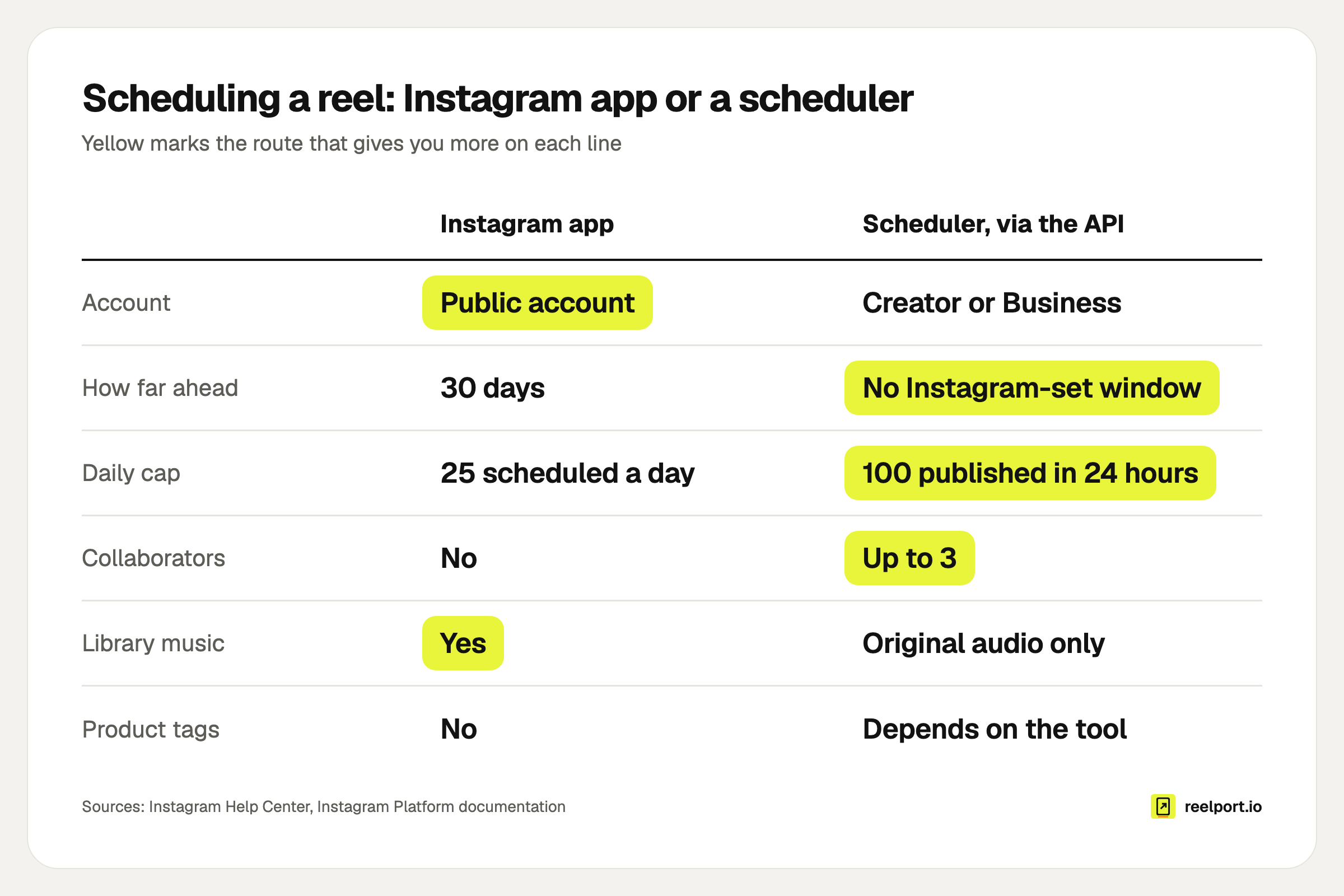
The app keeps Instagram's music and effects; a scheduler lifts the 30-day window and adds collaborators.
What file does a scheduled reel need?
For a reel published through the API, Instagram asks for an MP4 or MOV between 3 seconds and 15 minutes, 300 MB at most, with H.264 or HEVC video and AAC audio. 9:16 is the recommended shape. Every row below comes from the Reel specifications in Instagram's media reference.
| Property | Instagram's requirement |
|---|---|
| Container | MOV or MP4, moov atom at the front, no edit lists |
| Video codec | H.264 or HEVC, progressive scan, 4:2:0 |
| Audio | AAC, 48 kHz at most, mono or stereo, 128 kbps |
| Frame rate | 23 to 60 fps |
| Width | 1,920 pixels at most |
| Aspect ratio | 9:16 recommended |
| Video bitrate | 25 Mbps at most |
| Length | 3 seconds to 15 minutes |
| File size | 300 MB at most |
| Cover image | JPEG, 8 MB at most, 9:16 recommended |
Two notes on length. Recorded in the app, a reel can run to 20 minutes, but Instagram says reels over 3 minutes won't be recommended to new audiences. If reach beyond your followers is the goal, three minutes is the real ceiling.
A 4K export from a phone or an editor breaks two rows at once: width and, often, file size. Export at 1080 by 1920 and keep captions and stickers out of the areas Instagram's buttons cover. The safe zone tool shows them.
Why did a scheduled reel fail to post?
A scheduled reel fails for one of four reasons: Instagram could not fetch or read the file, the caption broke a limit, the account needs attention, or Instagram had a bad minute. Instagram's error code reference names each case, and a scheduler can show you the message.
| What you see | Cause | Fix |
|---|---|---|
| Unsupported video format | The file is not a MOV or MP4 Instagram can read | Re-export as MP4 with H.264 and AAC |
| Caption too long | Over 2,200 characters, 30 hashtags or 20 @ mentions | Cut the caption or move hashtags out |
| Thumbnail offset out of range | The cover frame sits past the end of the video, often after a re-trim | Pick the cover again |
| Daily publishing limit reached | 100 API posts in 24 hours | Wait a day |
| Account restricted | Instagram wants an action from you | Open the Instagram app and complete what it asks |
| Flagged as spam | Instagram suspects the action is spam | Tell Instagram if you think it made a mistake, then retry |
| Server error or download timed out | A temporary problem | Retry |
| Reconnect needed | The sign-in between the tool and Instagram expired | Connect the account again |
The retry row is the one a tool should handle for you. reelport.io retries network errors, outages and rate limits after 1, 5 and 15 minutes, and if Instagram refuses the post outright, the queue shows the reason and the person who created the post gets an email.
For reels scheduled in the app, check the two conditions from the Help Center page first: the account is still public, and the reel uses none of the features that are incompatible with scheduling.
How many reels fit in one scheduling session?
Count the posting days inside the window. In the Instagram app that window is 30 days, so the answer is your weekly rhythm times a little over four weeks. A scheduler has no Instagram-set window, so the limit is your plan and how far ahead your content stays true.
A worked example with an invented account: a pottery studio posts reels on Tuesdays, Thursdays and Saturdays at 18:00. The owner sits down on Monday 7 September 2026.
- The 30-day window ends on Wednesday 7 October.
- Tuesdays inside it: 8, 15, 22 and 29 September, 6 October. That is 5.
- Thursdays: 10, 17 and 24 September, 1 October. That is 4.
- Saturdays: 12, 19 and 26 September, 3 October. That is 4.
5 + 4 + 4 = 13 reels in one sitting. The next reel is due on Thursday 8 October, one day past the window, so the second session has to happen by then.
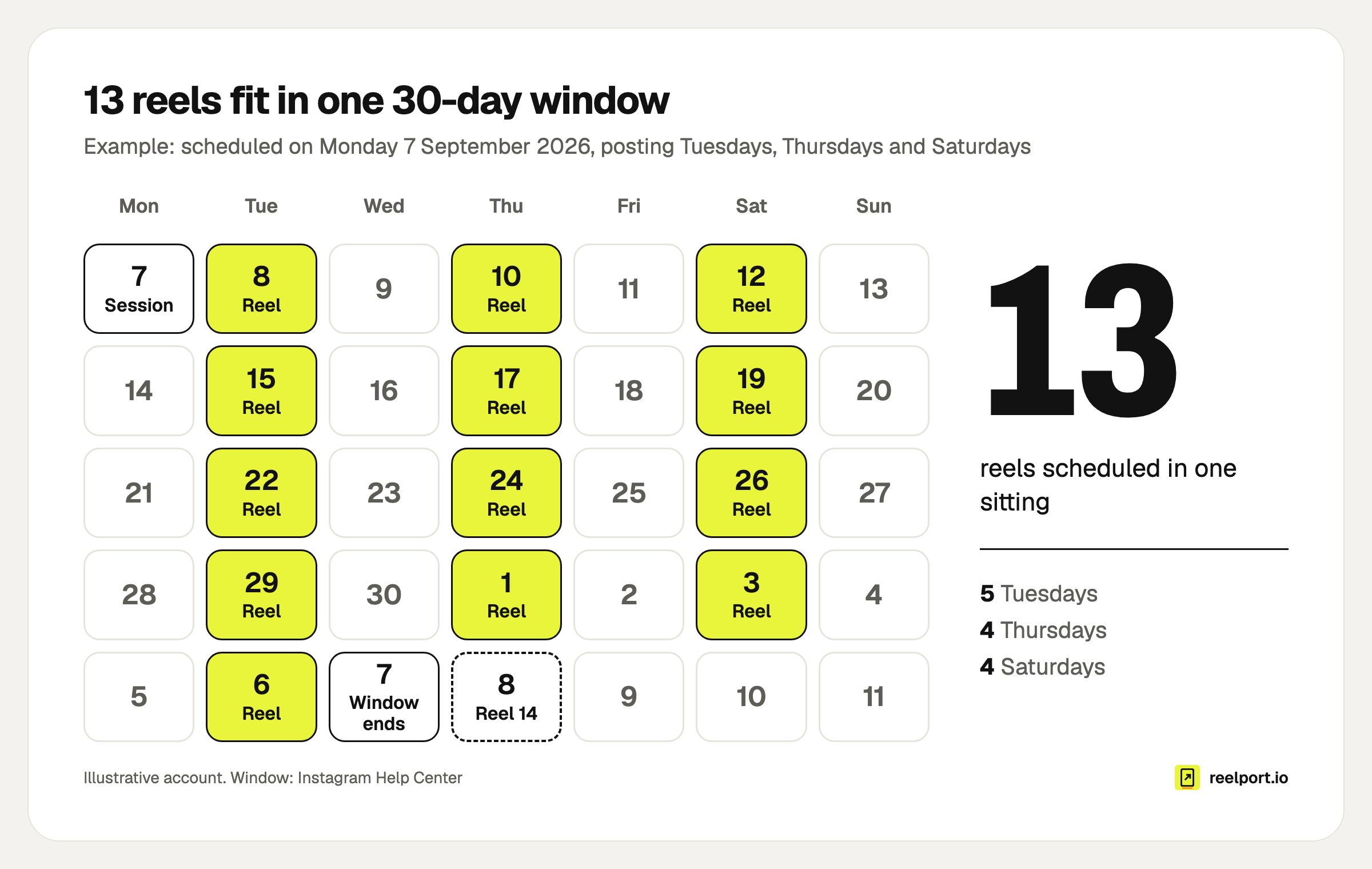
Three reels a week fill a 30-day window with 13 posts; the fourteenth has to wait for the next session.
If you have no rhythm yet, start with your own numbers: the best time to post on Instagram explains how to read them.
What should you check before scheduling a reel?
Run this list once per reel. Each line maps to a failure or a lost feature described above.
Reel pre-flight
[ ] File: MP4 or MOV, 1080 x 1920, under 300 MB, 3 s to 15 min
[ ] Length: under 3 minutes if it should reach non-followers
[ ] Sound: in the file (scheduler) or picked from the library (app)
[ ] Cover: frame chosen after the final trim, readable when cropped
[ ] Caption: under 2,200 characters, 30 hashtags, 20 mentions
[ ] First line of the caption makes sense without the video
[ ] Collaborators: usernames typed correctly, partners told to accept
[ ] Share to feed: on or off, decided on purpose
[ ] Facebook copy: wanted, or unticked in Meta Business Suite
[ ] Date and time: inside the window, in the right time zone
[ ] Reply plan: someone is online for the first hour of comments
A scheduled reel still needs a person for the comments. If the reel asks viewers to comment a keyword, set up the automatic reply first: Instagram comment to DM automation covers that.
Where reelport.io fits
reelport.io is the scheduler route. You connect an Instagram Creator or Business account with Continue with Instagram, with no Facebook Page needed, and schedule reels, photos, carousels and Stories next to your other networks. Each channel has time slots, and a new reel can take the next free one. Publishing runs on servers in the EU at the scheduled minute, so your computer can be off.
It does not edit video, and it cannot publish trial reels yet. For teams, a post can wait for approval before it goes out. The details for the channel are on the Instagram page, and plans start with a free one on the pricing page.